
Vitals vs Windows Task Manager
Task Manager is already on every Windows PC, it is fast, and for ending a frozen program it is hard to beat. Vitals is not trying to replace it for that. It is for the next question: why is the computer slow, what has been using the disk all afternoon, and which drive is close to the end of its life.
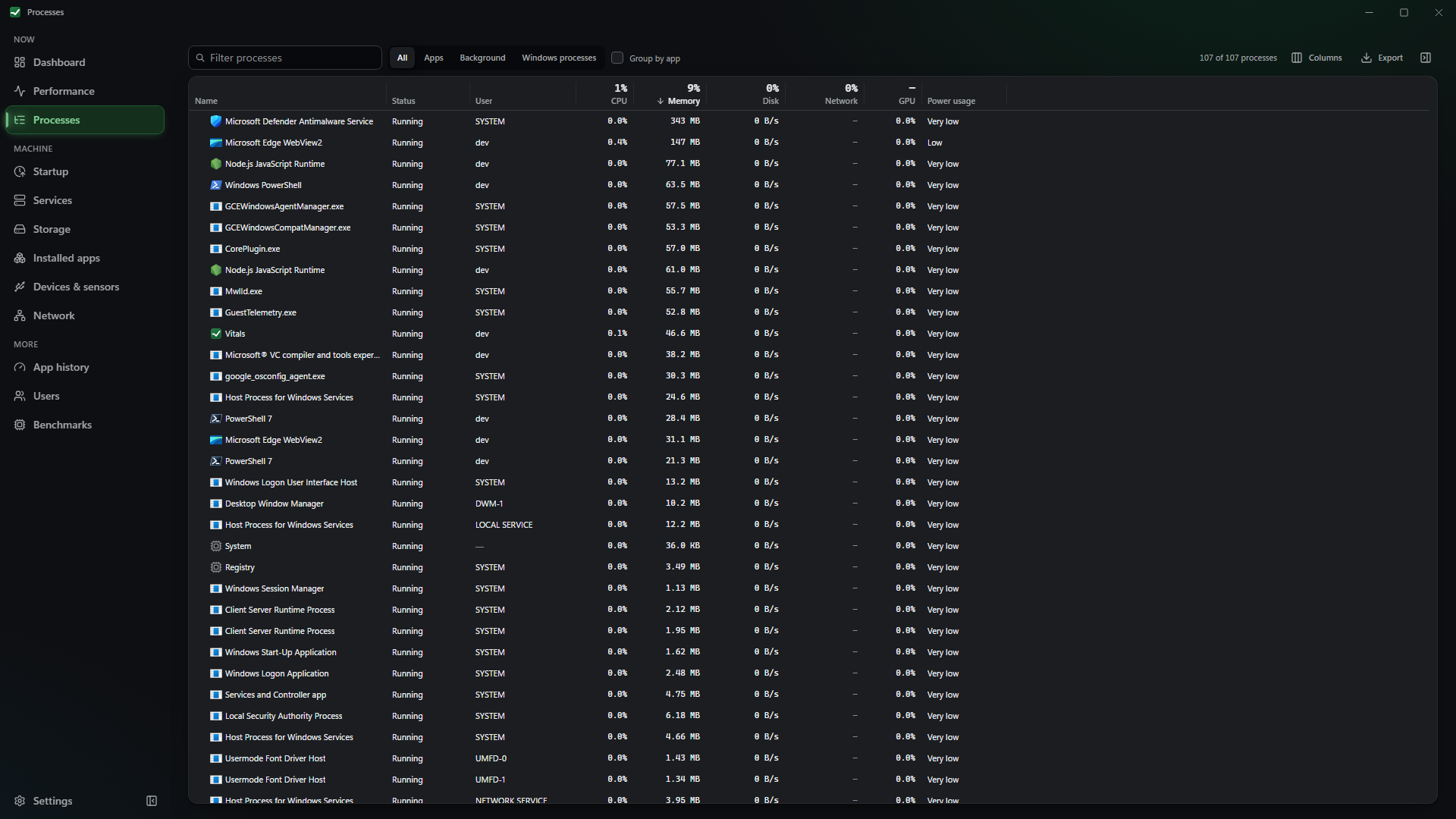
Side by side
Section titled “Side by side”| Task Manager | Vitals | |
|---|---|---|
| Comes with Windows, nothing to install | Yes | No — Store, winget or installer |
| End, suspend, priority, efficiency mode | End, priority, efficiency mode | All four, and it says what ending will do before you confirm |
| Startup apps and services | Yes | Yes, with Microsoft’s own entries hidden until you ask |
| Plain-language “why is my PC slow?” | No | Yes — a verdict, the culprits and a minute of chart |
| Drive temperatures and SSD life left | Not in Task Manager | Yes, where the drive reports them |
| Disk space map and clean-up | No | Yes, everything goes to the Recycle Bin first |
| Notices when Windows stops responding | No | Optional lag watchdog, off until you turn it on |
| History of the last minutes | 60 seconds of graph | Flight recorder plus optional history on disk |
| View from your phone or TV | No | Optional, on your own network only |
| Prometheus and Home Assistant | No | Optional endpoints, off by default |
| Open source | No | Yes, MIT |
Where Task Manager wins
Section titled “Where Task Manager wins”- It is always there. On a work laptop where you cannot install anything, on a friend’s PC, in Safe Mode: Ctrl+Shift+Esc works. Vitals has to be installed first.
- It is part of Windows. It is signed by Microsoft, it is updated with Windows, and IT departments already trust it. Vitals is a third-party app; the download page shows how to check that the file you have was built from the public source.
- It opens instantly, even when the machine is struggling. Windows gives it special treatment when the desktop is unresponsive. Vitals is a normal app and gets no such favours.
- Run new task, sign out a user, restart Explorer — all one menu away. Vitals can restart a frozen Explorer from its lag watchdog, but it is not trying to be a shell tool.
Where Vitals helps more
Section titled “Where Vitals helps more”- It explains. One button looks at processor, memory, disk, network and thermal readings together and names the cause in a sentence, with the programs responsible.
- It is honest about what it cannot see. A reading Windows does not provide is shown as a dash, never as a zero — no “0 % GPU” on a GPU that does not report usage.
- It looks after storage. Scan a drive, see it as a map, review what to remove, and send it to the Recycle Bin in one step.
- It goes beyond the window. Pair a phone on your home network, or point Prometheus at it. Every one of those features is off until you turn it on.
Use both
Section titled “Use both”Many people keep Task Manager for the quick kill and open Vitals when they want an answer. The installer version can also take over Ctrl+Shift+Esc if you ask it to (the Store version cannot, because Windows does not allow packaged apps to do that), and that is reversible from Settings.
Get it from the Microsoft Store
Other ways to install